Overview
HTML5 is the fastest growing web development trend and
HTML5 video as a part of HTML5 becomes the new natural way to show video online.
iPad, iPhone, Android, all new browsers declare the support for HTML5 video.
It's great, but what is the usual route to create HTML5 video?
First you need to find converters and make three versions of your
video - .OGG, MP4, WebM. Then, to provide the compatibility with IE and old browsers
you add a fallback Flash version of your video with Flash video player. And finally,
you extract an image for poster and write batch lines of code to combine all of it...
Quite complicated?
Forget about it with EasyHTML5Video!
All it takes is 3 easy steps to convert any of your video to HTML5:
1. Drag-n-drop video file to Easy HTML5 Video;
2. Set poster image, select codecs, tune settings;
3. Press "Start".
As a result you'll get an html page with all necessary code, images, and videos.
EasyHTML5Video makes your life easier with HTML5 video!

What's new
Easy Html5 Video v1.8 (October 31, 2012)
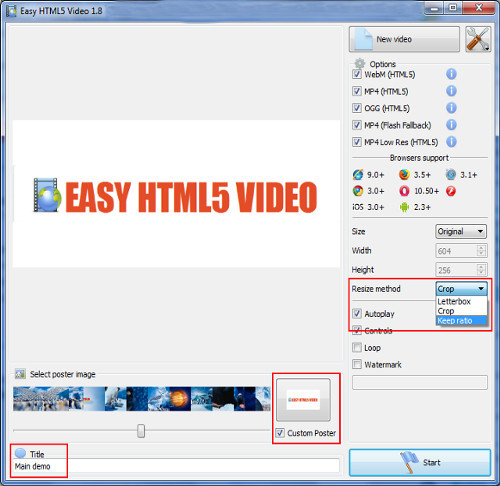
- "Keep ratio" resize method - if selected, will try to fit video to size without black stripes or cropping
- "Custom poster" option - use any image as a poster, not only a video frame

- Preview window now shows a real-size output
- Interface languages - German, Creek, Russian
- Possibility to run video with disabled controller on iPad, iPhone
- Improvements in "Insert to Page" wizard
- Minor fixes
Easy Html5 Video v1.7 (October 5, 2012)
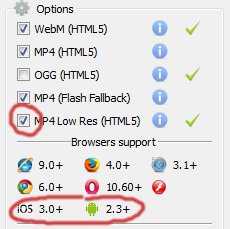
- "MP4 Low Res" option - adds low quality version of video for mobile devices, such as iPad 1,2; iPhone 3,4; Android 2.3. Select this option if you convert to HD or Full HD video.

- New compatibility hints - iOS, Android
- Improvements in "Insert to Page" wizard
- Minor fixes
Easy Html5 Video v1.6 (September 19, 2012)
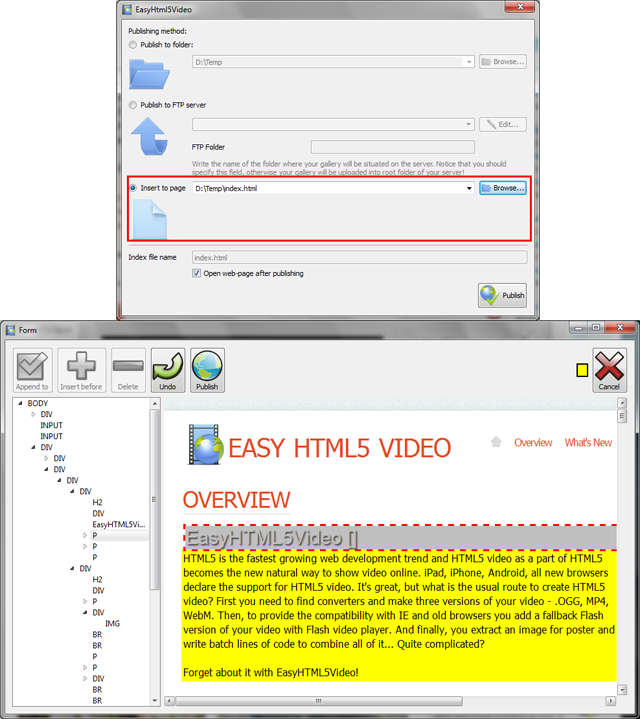
- "Insert to Page" wizard - inserts your video into HTML page visually, without HTML editing!

- Improvements in flash video player (it's used for flash fallback with IE 6,7,8) - support for "loop" and "autoplay"
- Bug fixes
Easy Html5 Video v1.5 (February 15, 2012)
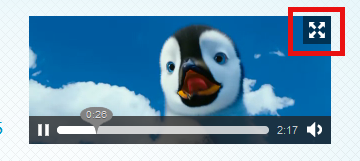
- Fullscreen support (button or double click)

- Improved support for android and iOS devices
- Improved WebM format quality (used by Firefox, Opera)
Easy Html5 Video v1.3 (November 10, 2011)
- "Loop" option - if checked, plays the video in an "infinite" loop
- "Controls" option - uncheck to hide video controls

- Support for new input video formats: Apple ProRes, Windows Media Video 9, MPEG-4 part 2 Microsoft, On2 VP8, Chronomaster DFA, Intel Indeo 3, Mobotix MxPEG video, BBC Dirac VC-2
- Bug Fixes
Easy Html5 Video v1.2 (September 1, 2011)
- Improved compatibility with IE7 and Android
- Option to remove videos from a recent list
- 320 x 240 video size added
- Minor fixes and improvements
Easy Html5 Video v1.1 (August 15, 2011) - Release!
Easy Html5 Video Beta (July 11, 2011) - Beta Version is Out
HOW TO USE
FAQs
- Technical Questions
- License Questions
- Recent Questions
Step 1 - Adding video to Easy Html5 Video converter
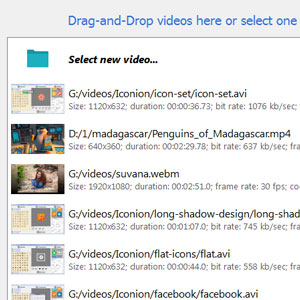
Press "Select new video" button. Browse to the location of the folder you'd like to add and select video. This video will be automatically added to converter. You can also drag the video to the Easy Html5 Video window or select video from recent list.

Step 2 - Specify settings
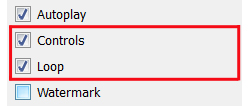
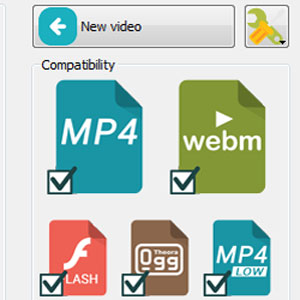
In the next window you can specify settings for the final video: select poster image, change video title, enable/disable 'Auto play', "Controls", "Loop" options. You can also set video size and resize method, select support for desired browsers and change the watermark.

After you have all the settings defined, press the 'Start' button.
Step 3 - Publishing of Video. Put video on website or local drive
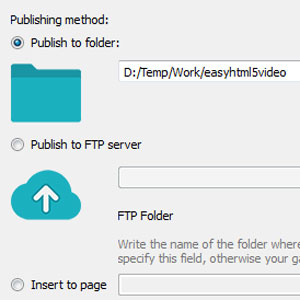
Now you are ready to publish your website video online or to a local drive for testing. Select the publishing method: publish to folder, publish to FTP server or paste video into existing html page using 'Insert to page' option.

- - publish to folder. To select a folder on your hard drive, just click the Browse folders button and choose a location. Then click Ok. You can also set 'Open web page after publishing' option.
- - publish to FTP server. The FTP Location Manager window enables you to define a number of connections for use when uploading your web site gallery to an FTP.
You are able to add a new FTP site by clicking 'Edit' to the right of the 'Publish to FTP server' drop down list. 'FTP Location Manager' window will appear. Now type in a meaningful (this is not the actual hostname) name for your site and fill in the FTP details in the appropriate fields. You will have to type in your hostname, e.g. domain. The FTP port is normally located on port 21 thus this has been prefilled for you already. If your web site uses another port, you will have to enter it here.
Type in your username and password for the connection. If you do not fill in this information, EasyHTML5Video is unable to connect to your site and thus not able to upload your videos to website. If this website enables anonymous connections, just type in anonymous as the username and your e-mail address as the password.

You might want to change the Directory as well if you need to have your uploaded images placed in e.g. "www/gallery/". You can specify it in the FTP Folder field on the Publish Gallery window.
Notice: Write the name of the folder where your website video gallery will be placed on the server. Notice that you should specify this field; otherwise your website video gallery will be uploaded into the root folder of your server!
Step 4 - Add Video inside your own page
Easy HTML5 video generates a special code. You can paste it in any place on your page where you want to add video.
* Export your video using Easy Html5 Video app in any test folder on a local drive.
* Open the generated index.html file in any text editor.
* Copy all code for Easy Html5 Video and paste it on your page in the the place where you want to have a video (inside the BODY tag).
<body>
...
<video controls="controls" autoplay="autoplay" poster="index.files/Ford_Mustang.jpg" width="480" height="352" >
.....
.....
</video>
...
</body>
DOWNLOAD
Easy Html5 Video is free for non-commercial use.
A license fee is required for business use. Easy Html5 Video Business Edition additionally provides an option to remove the EasyHtml5Video.com credit line as well as a feature to put your own logo to videos. After you complete the payment via the secure form, you will receive a license information instantly by email. You can select the most suitable payment method: credit card, bank transfer, check, PayPal etc.
|
Download Free Edition for Windows and Mac |
Buy Commercial Edition for Windows and Mac $49 |
SUPPORT
For troubleshooting, feature requests and general help contact us at

.
Make sure to include details on your browser, operating system, Easy Html5 Video version, link to your page. In most cases you'll get a reply within 1 business day.
Please read the FAQs first to see if your question has already been answered.
Supported Browsers
Firefox 4+
HTML5 with WebM or OGG
Firefox 3.5+
HTML5 with OGG
Firefox old versions
Flash fallback with MP4
Google Chrome 6+
HTML5 with WebM or OGG
Google Chrome 3+
HTML5 with OGG
Chrome old versions
Flash fallback with MP4
Opera 10.60+
HTML5 with WebM or OGG
Opera 10.50+
HTML5 with OGG
Opera old versions
Flash fallback with MP4
Supported Devices
Output Formats
FAQ:
Recent Questions
- Ogg webm converter in Firefox May 22, 2013
I just downloaded your software and when I play it locally the video starts but when I upload it to the server it does not work. I fully understand html and CSS and I know my files are linked correctly.
- Number of free avi webm converter installations May 22, 2013
Hi, If I have to re-install the application on the 2 machines covered by the license because of rebuilds, will it say that it has been activated more than the allocated amount of times?
- Number of webm video converter mac installations May 21, 2013
Hi, If I have to re-install the application on the 2 machines covered by the license because of rebuilds, will it say that it has been activated more than the allocated amount of times?
- Webm to mp4 converter free download doesn't play in FireFox May 20, 2013
Downloaded your trial version and it does not seem to play on fire fox V19.0. However it did play on all the other browsers and on the iphone. I do not have an android so I cannot check it.
- Webm ogg converter js file May 19, 2013
Just purchased your software. I wondered what the js file - EasyHTML5Video JavaScript Extension API - does? Many Thanks
- Webm file to mp4 converter upgrade May 18, 2013
I'm going to order the app. What will be with my videos and my app. after one year?
- Webm converter to mp4 doesn't play in FireFox May 16, 2013
Hi! Today I bought your latest unlimited website license version which I run on a mac osx version 10.6.8. The video works on safari, chrome, opera but not on Firefox.
- Bunch of files for encoding in webm converter para avi May 15, 2013
Hello! Great product! Is there any way to queue up a bunch of files for encoding?
- Am I allowed to use webm converter mac os x free version? May 14, 2013
I'd like to add your EasyHTML5Video to my site. But I'm not sure that I'm allowed to use free version. How can I know it?
- License webm converter free May 12, 2013
Hi, support! If I purchase your EasyHTML5Xideo Unlimited License can I use the program after 1 year?